Creating forms can be a tedious task, especially when you want them to look professional. Excel offers a simple way to design and print forms that meet your needs without requiring advanced skills. It’s user-friendly and efficient.
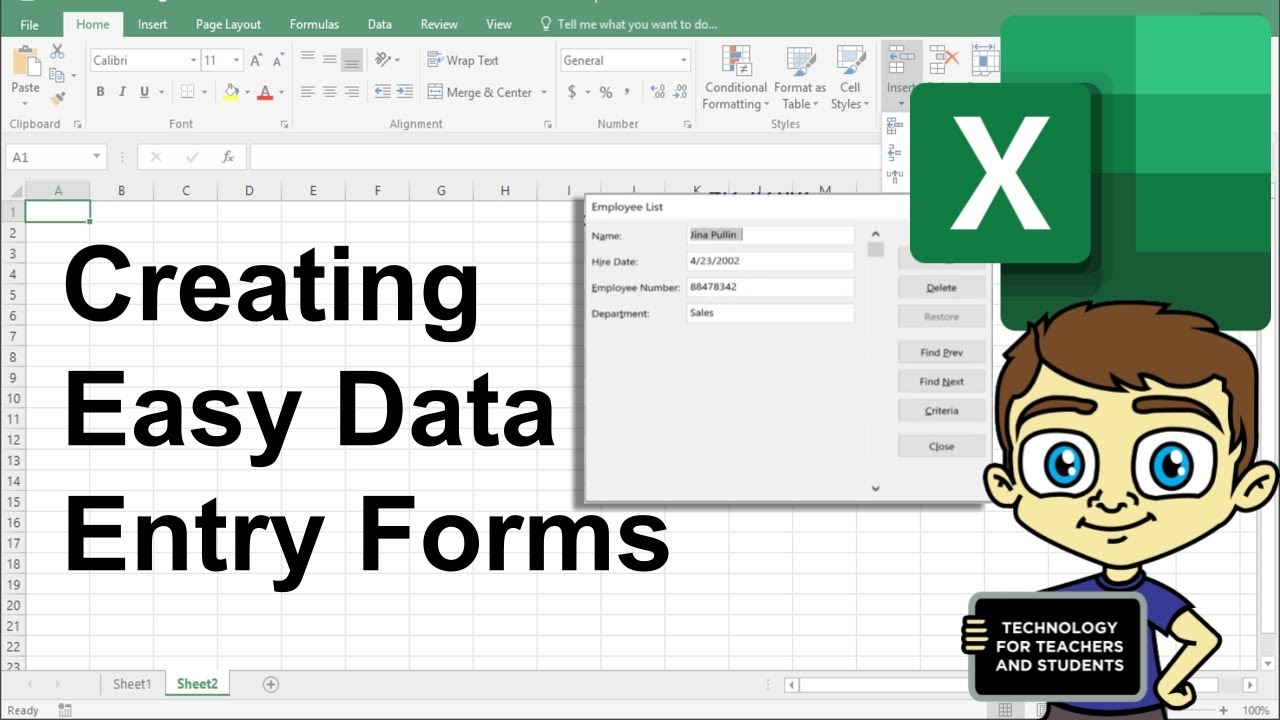
Creating A Printable Form In Excel
Creating A Printable Form In Excel
Start by opening a new Excel workbook and setting up your layout. Decide on the fields you need, such as name, date, or any specific questions. This initial planning will guide your design process.
Next, use Excel’s cell formatting options to enhance the appearance of your form. You can adjust cell sizes, add borders, and apply colors to make it visually appealing. A well-designed form is more likely to engage users.
After designing the layout, consider adding data validation features. This ensures that users enter information correctly. For example, you can limit responses to specific formats or provide dropdown lists for easier selection.
Finally, test your form by printing it out. Make sure everything aligns correctly and is easy to read. Adjust any elements as needed before sharing it with others for use.
Creating a printable form in Excel is straightforward and rewarding. With these tips, you can design effective forms that are both functional and visually appealing, making data collection a breeze.
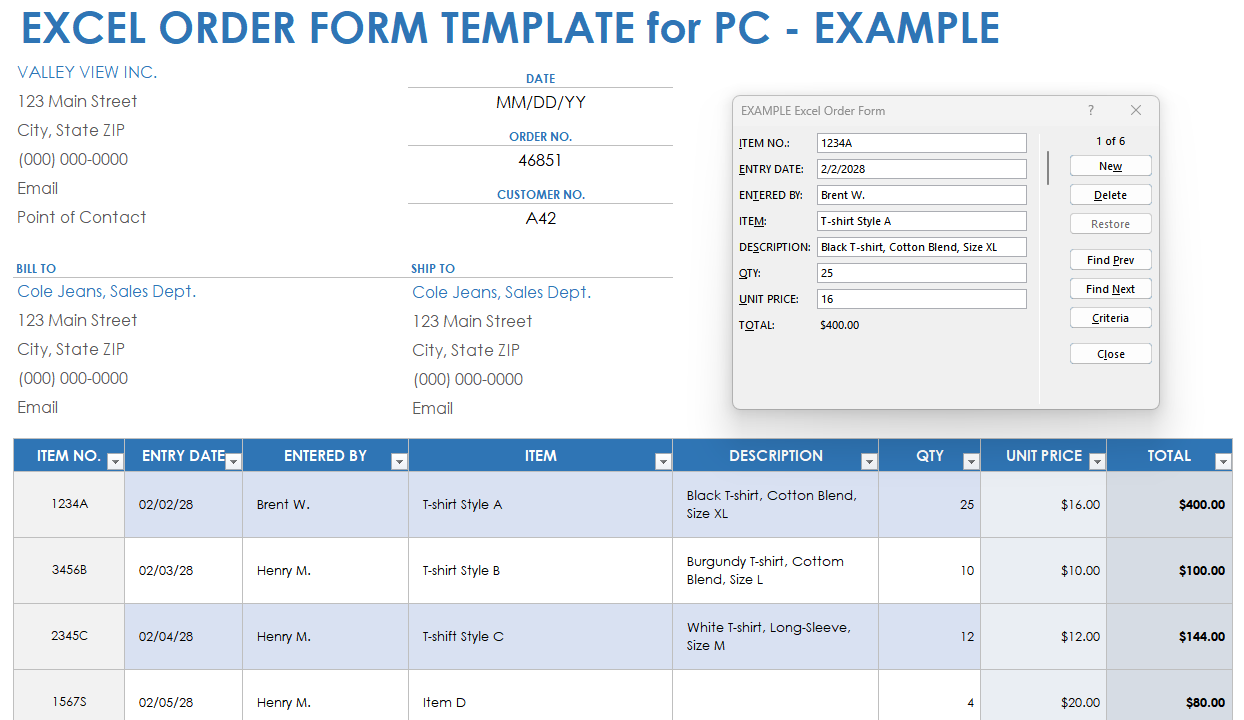
Free Excel Form Templates Fillable Forms Of All Types Smartsheet
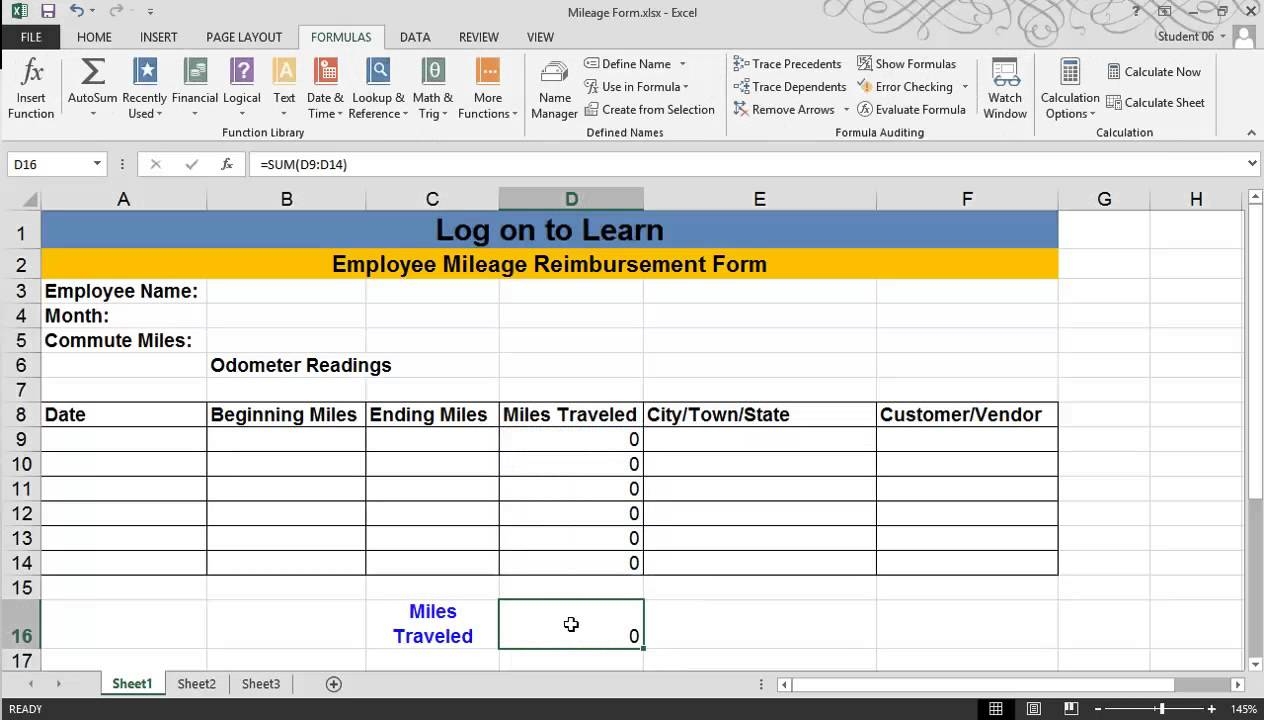
Excel 2013 Creating An Excel Template
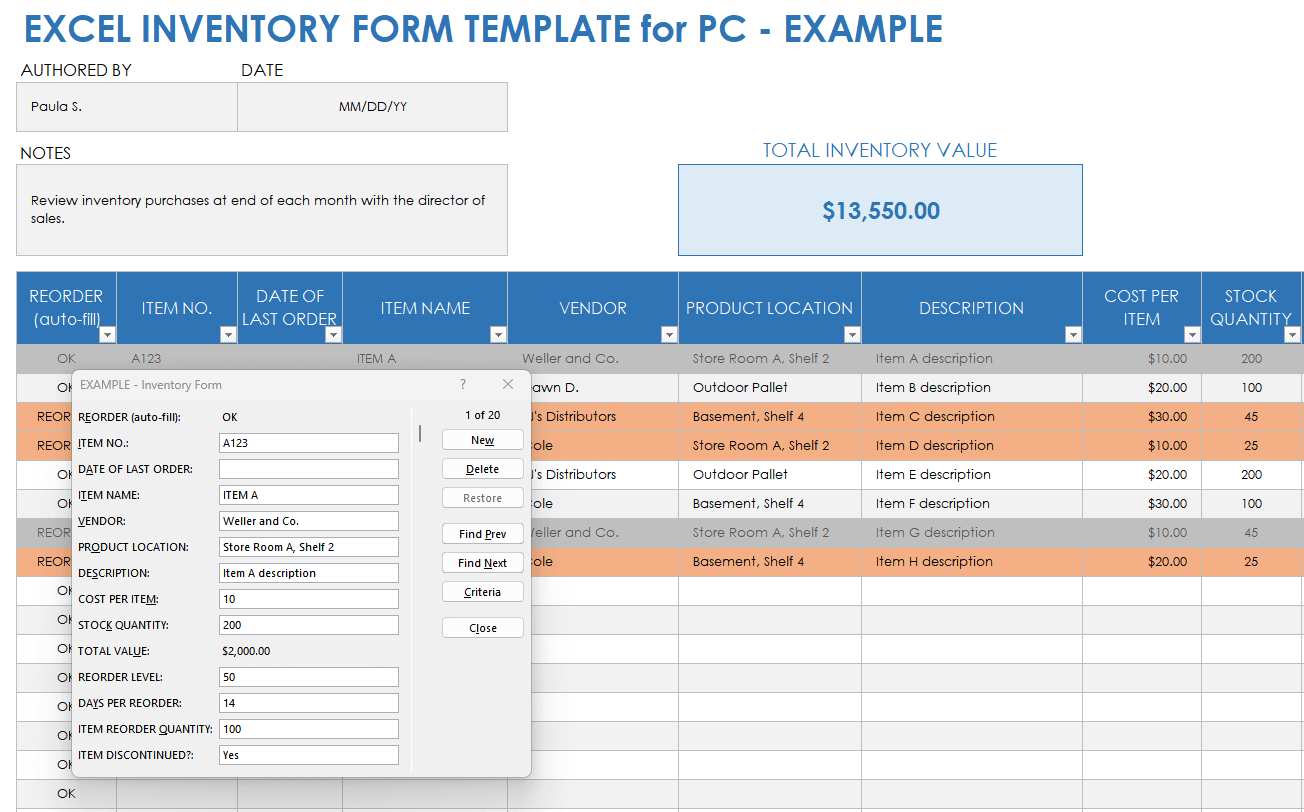
Free Excel Form Templates Fillable Forms Of All Types Smartsheet

How To Create Fillable Forms In Excel Employee Engagement Survey Template
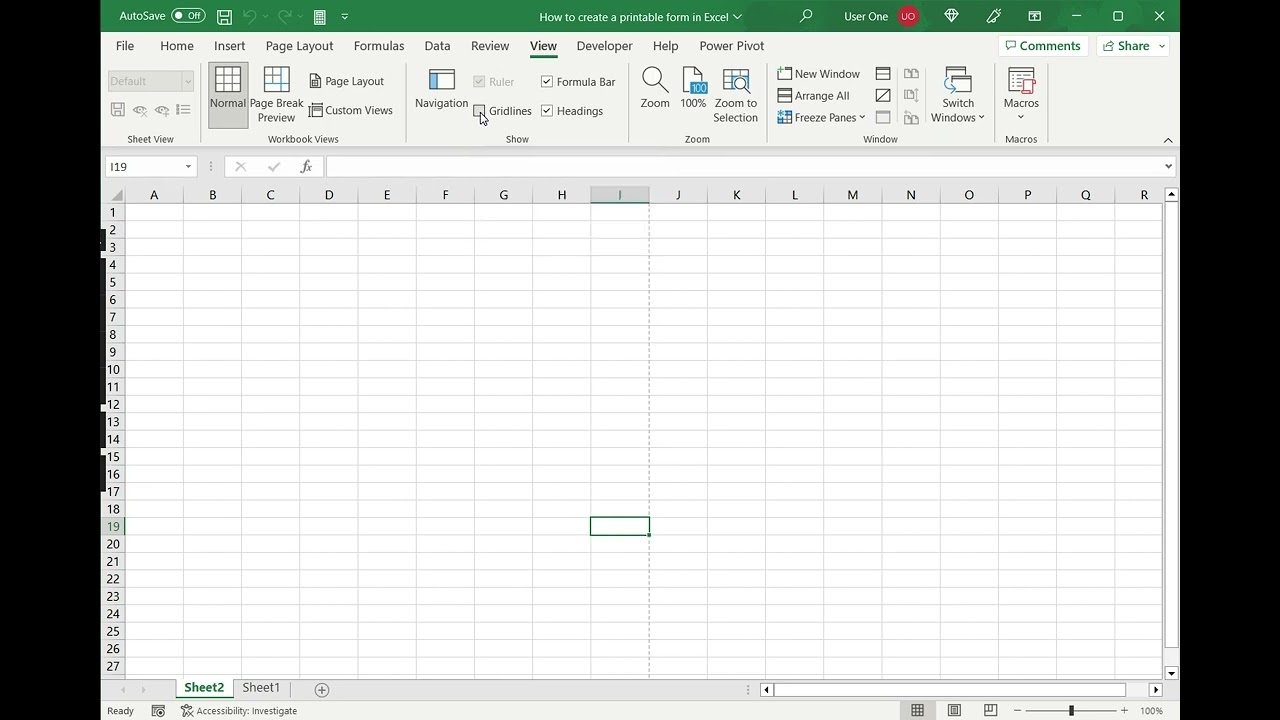
How To Create A Printable Form In Excel